
You’ve landed in your ReelFlow workspace on the Flows page:
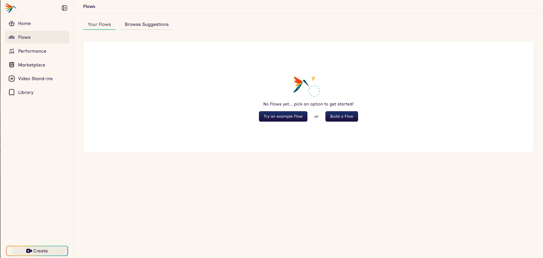
From here, you’re now ready to:
- Build a Flow
- Add videos to your Library
- Publish the ReelFlow Player to your website
We recommend building a Flow first and then add your videos to your flow.
Both of these steps need to happen ahead of Publishing the ReelFlow player and if you already have your videos ready, you can jump to Step 2 and then come back to Step 1.
🔄 Step 1: Build your first Flow
A Flow is our name for an interactive ReelFlow video experience on your website.
A Flow can be added to a single page, called the Activation URL.
You can either build a flow from scratch, or select from our library of pre-built templates.
-
Navigate to ‘Flows’ and hit ‘Build a Flow’
Using the Flow Builder
**Follow the step-by-step guide** and learn how to:
- Build Flows
- Set Button CTAs
- Add the Player to your web page via the Activation URL
Build your first Flow from the Flows screen in your ReelFlow Workspace.
🎬 Step 2: Upload your first videos
Once you’ve built your first Flow(s), you’re ready to upload your videos to your Library, and then add these videos into your Flow(s).
If you need to record you're videos, check out the articles below to get started:-
- Script your ReelFlow Videos
- Recording Videos from Home - home set up and kit options
- Recording your ReelFlow Videos - tips and tricks to recording great video
If you have videos ready, great! Head to the Library tab in your ReelFlow Workspace
- Upload a pre-recorded video <- information and guidance on best practice & video formats
- You can then add your videos into your Flows in the Flow Builder.
Looking for some video recording options to get you inspired?
Head to the Marketplace in your dashboard for Home, Remote and Professional recording options.
✅ Step 3: Publishing Flows to your website
All new Flows start as Drafts, and they are not visible on your website.
In order to see the ReelFlow player on your website, you will first need to:
Add the Install Code
-
Head to the Install Code page on in the Settings area of your ReelFlow workspace
-
Simply add one short line of code to the <head> of your website
-
Hit Verify on the installation page to check all is set up correctly
Publish Your Flows
Your install code has been verified and now you’re ready to Preview & Publish your Flow(s)
- Head to the Flows page and choose a ready made Flow
- Press the Edit button in the top right of the Flow Builder
- Preview your Flow via the 3 dots menu in the top right corner of the Flow Builder to check your Flow journeys and CTA buttons are working as expected.
- Ready to go? Hit Publish in the top right of the Builder to convert a Draft to a Published Flow.
💡 Top Tip: Make sure you have reviewed all captions on your videos prior to publishing
Note: When you attempt to publish a Flow, ReelFlow will conduct pre-flight checks to ensure all steps are complete before Publishing to your website. This helps you to avoid Publishing flows with gaps or errors to your visitor-facing website.
Your Flows are now live and ready to start increasing visitor engagement - congratulations 🎉
Need help? Visit Contact Us