
Accessing the Flow Builder
- Navigate to your ↗️Flows in the ReelFlow Dashboard, from the side navigation.
- Click on any Flow to enter the Flow Builder.
- Press Edit to begin making changes to the Flow.
Creating a new Flow
-
From the ReelFlow Dashboard, select Flows from the navigation and select Build a Flow.
-
Choose a Player Type:
- Overlay Player: Appears in the bottom-left or bottom-right corner of the page.
- Inline Player: Integrates directly within your page content.
Note: the Player type cannot be changed after the Flow is created.
-
Your Flow is immediately available to edit in the Flow Builder.
Renaming a Flow
1. While in the Flow Builder, click on the Flow title.
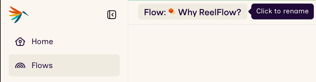
👉 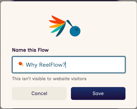
2. Update the title in the modal that appears:
-
- Titles can include emojis.
- Titles cannot be empty and are limited to 255 characters.
- Suggested titles based on templates or dates are provided by default.
Deleting a Flow
From the Flows screen in the Dashboard:
- On the Flows screen, locate the row representing the flow you wish to delete
- Select Delete from the dropdown menu at the far end of the row
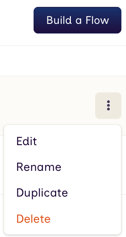
From the Flow Builder:
- In the Flow Builder, select Delete from the dropdown menu in the top right of the screen
- Select Delete from the dropdown menu at the far end of the row
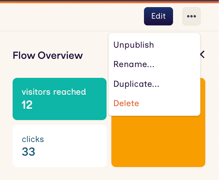
Duplicating an existing Flow
From the Flows screen in the Dashboard:
- On the Flows screen, locate the row representing the flow you wish to duplicate
- Select Duplicate… from the dropdown menu at the far end of the row
- Give the Flow an appropriate name
- Press Create Duplicate to finish
From the Flow Builder:
- In the Flow Builder, select Duplicate… from the dropdown menu in the top right of the screen
- Rename the Flow
- Press Create Duplicate to finish
Building Flows & editing Steps
A button in a Flow will land on a Step. Each Step has an Step Action, such as scrolling to a location on the page, or playing a new video in a Flow.
Which Step action is the correct one for your needs?
-
Show & play a video - Immediately plays a specific video, continuing the visitor’s journey through the Flow.
-
Redirect to webpage - Immediately redirect the visitor to another page on your website (you can add a different Flow to that page) or an external URL. You can set it to open in a new tab if you wish.
-
Scroll within page - Move the page to another location through scrolling. Optionally you can configure this step to also close the Player. You will need a HTML anchor on the page to scroll to. Learn about this here: Scroll within page: setting the location to scroll to
-
Scroll within page then play another video - Move to another location on the same page through scrolling, but this time also play another video. You will need a HTML anchor on the page to scroll to. Learn about this here: Scroll within page: setting the location to scroll to
-
Close the Player - Will revert the player back to the eyecatcher
Adding and Editing Steps
-
Click Add Button on the Flow Builder canvas to create a new button and corresponding Step.
-
Click on the Step. From the flyover menu, select an Action for the Step:
- Show & play a video
- Redirect to webpage
- Scroll within page
- Scroll within page then play another video
- Close the Player
-
Click the Step to modify its content:
- Where appropriate, select a video reel from the Library or configure a page to redirect to
- Edit text, buttons or subject details for the Step
Note: When configuring a Step to redirect to a URL, you can set a relative path (e.g.
/company/about) or absolute (https://example.com/external/page.htm)Note: You can configure a button in a Step to open the customer’s email client (e.g.
mailto:info@example.org), start a phone call (e.g.tel:+441234561234), or start a WhatsApp call or message.Note: When configuring a Step to scroll within a webpage, you will need to set the HTML ID of the element you wish to scroll up or down to (e.g.
#section_title)
Deleting Steps
- Select the Step to delete, then choose Delete step from the Step drop down.
- Confirm removal. We will warn about any affected sub-Steps or button
Undo/Redo changes
- You can use Undo (Cmd + Z / Ctrl + Z) or Redo (Cmd + Shift + Z / Ctrl + Shift + Z) while editing your Flow to move through the history of changes made