
Preview a Flow
Once you've built your Flow, you can preview it on your website prior to publishing it on your website.
Your install code must be added to your website before you can Preview your Flows using this feature.
If you still need to complete this step, visit How to add the install code to complete installation first, then return to this page.
If you still would like to Preview a Flow, but without adding the Install Code first, try our Simulated Preview feature instead.
- Open the Flow you want to preview.
- Click Edit to enter the Flow Builder.
- Confirm you have the correct Activation URL and Page set in the Activation Tab. This is the page the Flow will be previewed on.
Here is an example of how to set the page: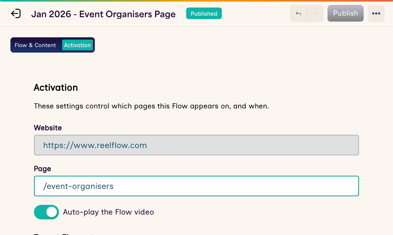
- From the drop down menu next to Publish button, select Preview
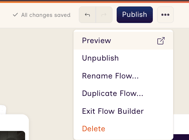
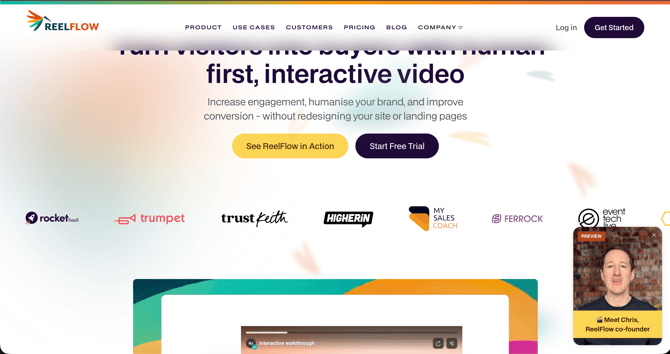
- A browser will open showing a preview of the Flow.
- Visitor activity in preview mode never counts towards your plan usage and is not recorded in your performance metrics.
- The preview will reflect any changes you have not yet published.
- A small preview label will be visible.
- See an example of a preview below:
Troubleshooting Previewing Flows
If the preview doesn’t work, consider the following:
- It is not possible to Preview until you have added the ReelFlow Install Code to your website. See How to add the install code.
Publishing Flows
All new Flows start out in a Draft state, and they are not visible to website visitors until you Publish them.
You must have your install code added to your website before you can Publish your Flows.
If you still need to complete this step, visit How to add the install code to complete installation first, then return to this page.
To Publish a draft flow and make it visible on your website:
- Press the Edit button in the top right of the Flow Builder
- Use the Publish button in the top right of the Flow Builder to go-live!
Dealing with errors when publishing Flows
When you attempt to publish a Flow, ReelFlow first conducts a number of "pre-flight checks" to ensure all requirements are met.
This helps you to avoid publishing flows with gaps or errors that your visitors might see. If we find any issues, we'll immediately let you know inside the Flow Builder how to rectify them.
- After pressing Publish, any pre-flight errors on Steps will be highlighted and marked with a red dot
- You will need to click on any marked steps to correct any errors before pressing Publish again
- The most common error is to leave example video content in a Step or not reviewing video captions before publishing.
Unpublishing a Flow
You can remove a Flow from your website to stop visitors seeing it by selecting Unpublish from the menu in the top right of the Flow Builder whilst in Edit mode.
- Press the Edit button in the top right of the Flow Builder
- Use the Unpublish button in the top right of the Builder
Flows that have been Unpublished can also be previewed or published again.
Note: Flow activity and performance metrics are retained for Flows even once you unpublish them, and remain available in Performance metrics in your dashboard.