
The ReelFlow Inline Player expands to fill all the available space inside the Target Element, which is set in the Activation tab of the Flow Builder.
For initial and general guidance on adding an Inline Player, read this first: How to add & position an Inline Flow on a webpage
For example, if the target element occupies 90% width of the page and has a fixed height of 300px, the Inline Player will expand to fill those dimensions.
Automatically set the Inline Player dimensions
This is the default behaviour. In the Activation tab, ensure that the recommended dimensions switch is turned on.

We recommend you let us set the Player dimensions most of the time.
When recommended dimensions are enabled, we apply some basic dimensions to the Player that should suit most scenarios on different screen sizes. Different dimensions will apply depending on your choice of Video Fit.
Manually set Inline Player dimensions
There are times where the Target Element has existing CSS styles which will interfere with how the Inline Player appears. These may change depending depending on how the page is responsively constructed to work across mobile and desktop. For example, the Player may look compressed when added to a narrow target element, but then appear correctly on larger screens.
To address these challenges you can use two techniques:
- Adjust the page CSS styles - this is the recommended approach in most cases
- Alternatively, in the Flow Builder, select the Activation tab, and use the Player Dimensions section to override the existing height and width dimensions of the Target Element
Note: Adjusting Player dimensions can be tricky, and you may wish to seek the help of a web developer.
If you choose to manually set dimensions via the Activation tab in the Flow Builder, and if you’re having trouble with Player appearance, setting a minimum height and minimum width can helps the Player from becoming squashed to the point of being unusable in particularly small spaces. A maximum width can be useful to prevent stretching on very wide screens.
We don’t recommend setting all values - usually the minimum and maximum values are the sensible ones to try first (rather than height or width). You can use any valid CSS value; auto, a percentage or a unit value.
Start by setting values in the Desktop column, these will apply in all instances. Values set in the Tablet and Mobile columns will override Desktop values, in that order.
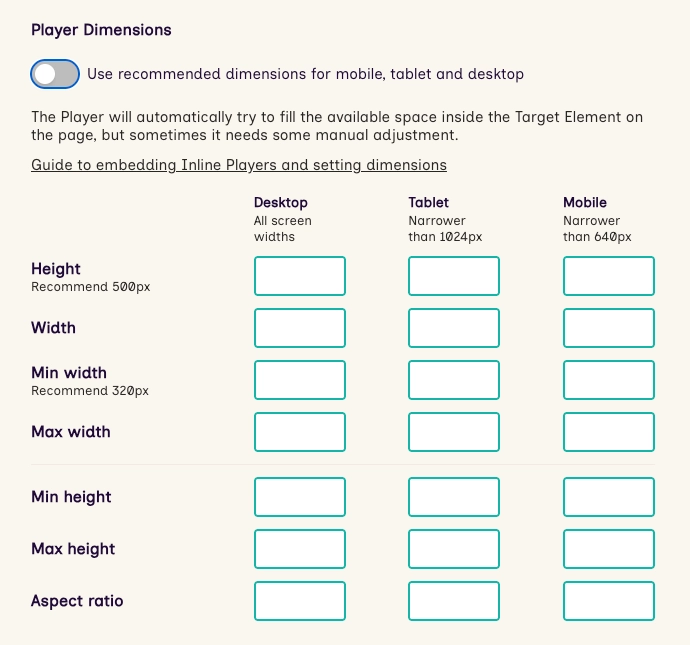
Note that setting an aspect ratio can be incompatible with width and height settings.
We also recommend you test your result on different screen sizes and on a mobile device to confirm they work as intended.