
Recording video at home is easier than you think. With a simple setup and a few tips, you can create great looking videos quickly.
This guide covers:
- Home Recording Kit - what to buy
- Easy scripting tips
- How to record with confidence
- The best export settings for ReelFlow
Home Recording Kit - what to buy
To set up your own home recording studio, at a minimum you will need:
- 📱Smart phone, laptop or camera
- 🤳🏻 Tripod is helpful when using a phone or camera
- 💡A bright light or studio light
- 🎙️A decent microphone
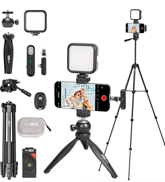
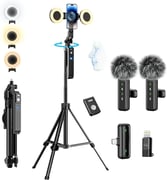
See some of our suggested kit options below:
| Adjustable Sturdy Tripod Stand (~£50) | 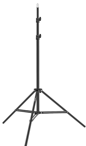 |
| Studio Light with desk clamp (~£109) | 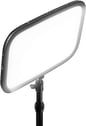 |
| USB Microphone (~£30) | 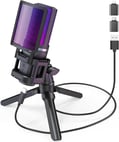 |
| Rode USB Microphone (~£130) | 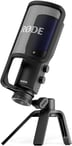 |
 |
|
 |
Setting Up Your Recording Space
Before you get started, watch the video below to see our top tips for home recording.
Lighting💡
- Ensure lighting is set up at face height in front of you. If the light is too bright, bounce it off a wall.
- Sit facing the light, in front of a window or ring light works great. Avoid having windows behind you and try to avoid shadows.
Sound 🔉
- Use your external mic for clearer audio.
- Record in the quietest room you have.
- Soft furnishings reduce echo.
Background 🌆
- Keep it clean and simple with no distractions behind you.
- Step slightly away from the wall to avoid shadows.
Framing 🖼️
- Record in landscape 16:9 (horizontal), this is the required format for ReelFlow.
- Position your camera at eye level using your tripod.
- Centre yourself, with shoulders in frame and a little space above your head.
- If your kit has auto-tracking, make sure it’s locked onto your face before recording.
Scripting – Top Tips
1️⃣ One page = One Flow
Create a short script for every page where you want the ReelFlow player to appear. Use clear naming so everything stays organised (e.g. A1 – Homepage, B1 – Product, C1 – About Us).
⏳ Keep videos to 30–40 seconds
We've found around 30 seconds is the sweet spot for engagement. If you have more to say, break the topic into a multi-step Flow (e.g. B1 Product Intro, B2 Product Details, B3 How to Try the Product).
🤏 Break up big topics by using multi-step Flows
Short, social media style videos are easier for your visitors to digest and easier for you to record. Think of each step as one clear idea and use the interactive buttons to guide visitors to the next step in their journey.
➡️ Use the interactive buttons to guide your visitors
You have three interactive buttons to move visitors to the next step, whether that's redirecting to a new page, dropping to a point on the page or starting another video. Keep each button name short (3 words max) and make the next step feel obvious and smooth.
✍️ Write like you talk
Friendly, human language works best. Bullet points help keep your delivery natural — or repurpose existing marketing copy if you have it.
🤖 Let AI help you start
Stuck? Share your website, brand tone and this guide with your AI tool of choice and ask for a first pass script. Then tweak it to sound like you.
Download AI Prompts
How to Record Videos
Recording great videos doesn't need to be complicated. With a simple setup and a few smart choices, you'll get clean, confident results every time.
Before you start:
- Read the guidance below
- Pick the quietest room you can
- Turn off noisy things like fans and notifications
- Clean your camera lens
- Do a 10 second test video
- Watch it back with sound on
🎥 Video Setup Essentials
- Record in landscape (16:9) — perfect for ReelFlow and avoids black borders.
- Use 1080p HD and export in MP4 (H.264) where possible.
🎬 Recording Technique
- Start recording a few seconds before and after you speak — easy to trim in the edit later.
- Look directly into the camera lens for a natural, face-to-face feel.
- Stay central in the frame and leave a little space above your head.
- If you make a mistake, keep rolling and simply say the sentence again — you can choose the best take later.
- Depth in the background (a plant, shelving, wall texture) adds visual interest.
👔 What to Wear on Camera
- Stick to solid, mid-tone colours — navy, charcoal, emerald, burgundy, light blue.
- Choose simple patterns only. Avoid pure black, pure white, neon, or anything that "shimmers" on camera.
- Wear something comfortable and fitted so you're not adjusting during filming.
- Make sure hair is neat and your face is clear and visible.
🤳 Additional Tips for Self-Recording
- Take a breath, relax your shoulders, smile — then hit record.
- Place any notes or scripts just below the lens to keep eye contact natural.
- Continuous recording is easier than stop–start; you can cut later using a video editor, we like to use Veed.io for simple top and tail editing.
- Modern iPhones often outperform webcams — use Continuity Camera if you prefer.
🗂 After Recording
- Use a video editor, like Veed.io, Capcut or QuickTime Pro to trim clips tightly so they start when your voice and movement begin.
- Name your files clearly (e.g. A1 Homepage, B2 Product .
- Export your videos at 100MB or lower, you can compress them in your video editor.
⚙️ Ideal Export Settings
- Resolution: 1080p (1920×1080)
- Format: MP4 (H.264)
- Bit-rate: 8 Mb/s
- Audio: AAC, 48 kHz
- Frame rate: Same as original
- File size: Under 100MB
Once your videos are recorded and footage edited, head to Library and upload videos into the ReelFlow workspace.