
You must have your install code added to your website before you can Preview and Publish your Flows.
If you still need to complete this step, visit How to add the install code - complete the installation and come back to this page.
How to Preview Flows
Once you've build a Flow you can preview the experience and check the action buttons prior to going live and publishing it on your website.
- Choose which Flow you want to preview from the Flows page.
- Click Edit:
 in the top left corner to enter the Flow Builder
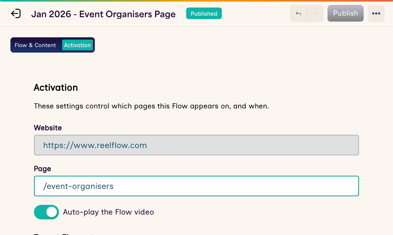
 - Add the Activation URL in the Activation Tab. Homepage Flows will remain blank, any other pages, add all information after the domain/ into the Activation Tab
- You can see an example below of how to add this below:
-
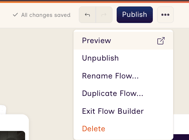
Once you've added your Activation URL, click the 3 dots menu in the top right corner of the Flow Builder and select Preview
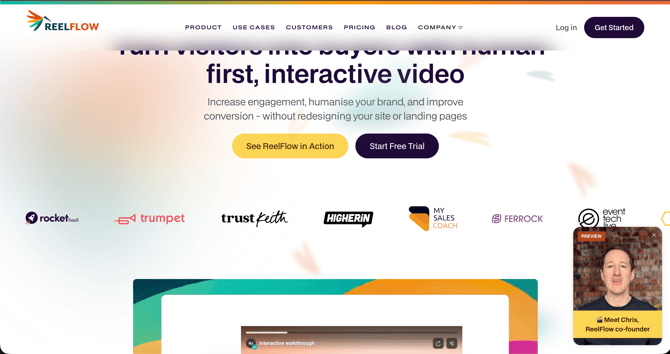
If the install code is added to your website, a preview of your webpage set in the Activation URL and a Preview version of the ReelFlow player will show in a new tab. Example below:
Troubleshooting Previewing Flows
If the preview doesn’t work, consider the following:
- It is not possible to Preview when you have not yet added and verified the ReelFlow Install Code is working on your website. See How to add the install code
- It is not possible to Preview when you still have example videos in your Steps, replace them using the Flow Builder
Publishing Flows
All new Flows start as Drafts, and they are not visible on your website.
To Publish a draft flow and make it visible on your website:
- Press the Edit button in the top right of the Flow Builder
- Use the Publish button in the top right of the Builder to convert a Draft to a Published Flow.
Note: When you attempt to publish a Flow, ReelFlow will conduct pre-flight checks to ensure all Steps are complete and appropriate before letting the Flow be published. This helps you to avoid publishing flows with gaps and errors to your visitor-facing website.
Dealing with errors when publishing Flows
- After pressing Publish, any pre-flight errors on Steps will be highlighted and marked with a red dot
- You will need to correct any errors before pressing Publish again
- The most common error is to leave example video content in a Step. You can resolve this by selecting a video from your Library, changing the Step Action, or deleting the step.
Unpublishing a Flow
You can remove a Flow from your website by selecting Unpublish from the menu in the top right of the Flow Builder whilst in edit mode.
- Press the Edit button in the top right of the Flow Builder
- Use the Unpublish button in the top right of the Builder
Note: Flow activity and performance metrics are retained for Unpublished flows, and you can still find them in Performance in your dashboard.