
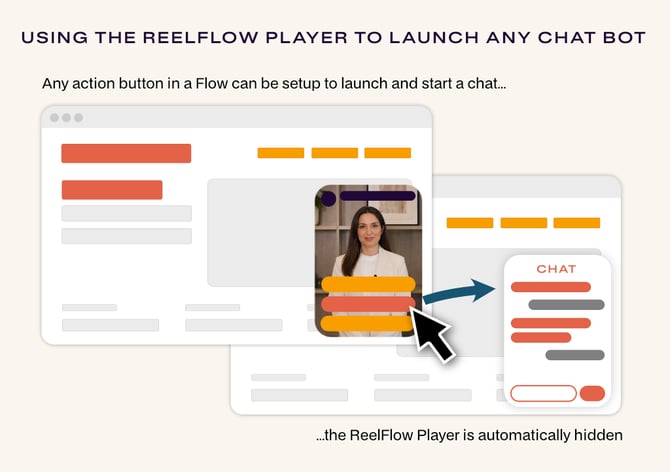
The Start a Chat Step Action is helpful when you already have an existing chat tool you wish to direct website visitors to, from a ReelFlow Player button e.g. Hubspot Chatflows or Intercom.
When clicked by a website visitor, the button will launch the chat experience and hide the ReelFlow Eye-catcher, clearing the way for the visitor's conversation.
Supported chat services
Start a Chat directly connects to:
-
Hubspot Chatflows
-
Chatbase
-
Zapier chatbots
-
Intercom
- Salesforce Enhanced Web Chat (formerly known as Messaging for In-App and Web / MIAW) - this includes Agentforce Service Agents and Einstein Bots
And, if we don't already support a chatbot you wish to integrate with, you can easily create your own integration script in most cases. Find the guide below for integrating a custom chat service.
How to set up "Start a Chat"
-
Open the Flow from the ReelFlow dashboard, and choose Edit to open the Flow Builder
-
Create or select an Action Button from a Step, the Step Settings flyover menu will open
-
From Actions, choose Start a Chat, and select the correct Chat Service from the list. For more information about integrating with the specific chat services, read below.
Requirements & technical detail
- The Chat Service you select (or wish to integrate as a custom chat service) must already be live, visible and working on the page you intend to use the Flow on for this feature to work.
- You must have already created a ReelFlow Flow for the page, setting the activation page URL, so it is either previewable or published.
- Your selected action button will automatically connect and integrate to open your selected chatbot if everything is setup correctly. You can check for any errors by opening the Console in your web browser, we display status messages there to help with troubleshooting.
- When using on Overlay Flows, you have options to set the ReelFlow Player to hide when the chat starts, and show again once the chat finishes; the options can be found in Step settings. For Inline Flows, these options are not shown.
- You will likely need to go into settings of your third-party chat service and set the chatbot "launcher" to be hidden on page load to avoid it showing up and clashing with the ReelFlow eye-catcher. This is often a setting inside the third-party chat tool configuration, rather than something we control.
- Some chat providers don't expose a javascript method to close the chat window programmatically - only to open it and detect when the visitor closes it themselves. Check your provider's API before assuming full open/close control.
Using the Custom chat service option to launch any chatbot or tool
In order to launch a chat service we don't support directly, you will need to prepare and add some custom javascript to your webpage (an example of that code is shown below). This approach takes advantage of our Player API which extends ReelFlow functionality and you may want to seek the help of a web developer.
The script must be added after the ReelFlow Install Code and the install code of the other third-party chat service you wish to use, all within the <head> of the HTML .
You must configure the button name in your code to match the one you set in the Flow Builder.
The integration between any chat service and ReelFlow relies on them both being operational on the page first, and then providing this javascript code to connect them, so that when a button is clicked in one, it closes ReelFlow and the chat service. The chat service itself is not embedded or supplied inside ReelFlow, or visa-versa.
Use this LLM Prompt to prepare your custom script
An LLM like ChatGPT or Claude maybe able to prepare the code for your specific custom chat service by modifying the example code below. If you wish to use an LLM, use the prompt with the example script shown below it.
I'm wiring up ReelFlow so that clicking a button inside a ReelFlow Flow opens my chat widget instead of the widget's own launcher button.

Below is a template script with  sections. Fill in every
placeholder with working code for [YOUR CHAT PROVIDER NAME]'s JavaScript
API, and leave everything else in the script exactly as written.

Here are my chat provider's JS API docs: [PASTE LINK HERE, e.g.
https://example.com/api-reference/chat-widget/]

Here are the ReelFlow JS API docs:
https://help.reelflow.com/api-reference/chat-widget/

Look up how to do these four things and use them to fill in the
placeholders:
- Hide the default launcher button
- Open the chat window in JS
- Close the chat window in JS
- Detect when the visitor closes the chat window (if the API supports it —
  if not, just delete that placeholder block)

If I haven't given you a link, or the docs don't cover something, ask me
rather than guessing.

Return the complete script, ready to paste into my site, with no
 tokens left in it.

[paste the template script here]
Example Custom chat service integration script
The example javascript to modify, or supply with your prompt (see above):
<script type="text/javascript">
(function() {
    'use strict';
    console.log('ReelFlow <>  enabled');

    // IMPORTANT: Match the exact action button text in
    // the Step Settings in Flow Builder
    const ACTION_BUTTON_TEXT = "Start chat";

    // Hide your chat widget's default launcher button.
    // Use whatever your provider's docs give you for this — a settings
    // flag, a config object, or an API call. Delete this line if your
    // widget has no launcher to hide.


    var targetFlow;

    // Wrapper for your chat widget's show/hide calls, gated on ReelFlow being ready
    const chatWidget = {
      show: function() {
        if (!targetFlow) {
          console.warn('ReelFlow not initialized - cannot show  chat');
          return;
        }


        // If your provider has an event for when the visitor closes the chat
        // window, use it here to bring back the ReelFlow eyeCatcher.
        // Delete this block if your provider doesn't offer one.

      },
      hide: function() {

      }
    };

    window.addEventListener('reelflow:ready', () => {
        console.log('ReelFlow ready!');

      // Get all flows available on the page and use the first one
      const pageFlows = window.ReelFlow.getAvailableFlows();

      if (!pageFlows.length) {
        console.warn('No ReelFlow Flow available for this page');
        return;
      }

      // Locate the Flow; you could otherwise hardcode a value here
      const REELFLOW_FLOW_ID = pageFlows[0].code;
      targetFlow = ReelFlow.getFlow(REELFLOW_FLOW_ID);

      // Listen for a button click within the Flow, prevent default action, and show the chat widget
      targetFlow.player.on('actionButton:click', (action) => {
        if (action.label === ACTION_BUTTON_TEXT) {
          targetFlow.eyeCatcher.hide();
          targetFlow.player.hide();
          chatWidget.show();
        }
      });
    });
})();
</script>
For detailed information about getting the most out your integration, please read our Player API documentation, , or you can reach out to our support team.
Looking for more general information on building Flows and setting up button actions? Read our article on getting started with the Flow Builder.